Short YouTube clips download without much trouble on most tools. A three-minute music video, a two-minute tutorial, a quick Shorts clip. These are straightforward. The file is small, the download finishes fast, and if something goes wrong you just try again.
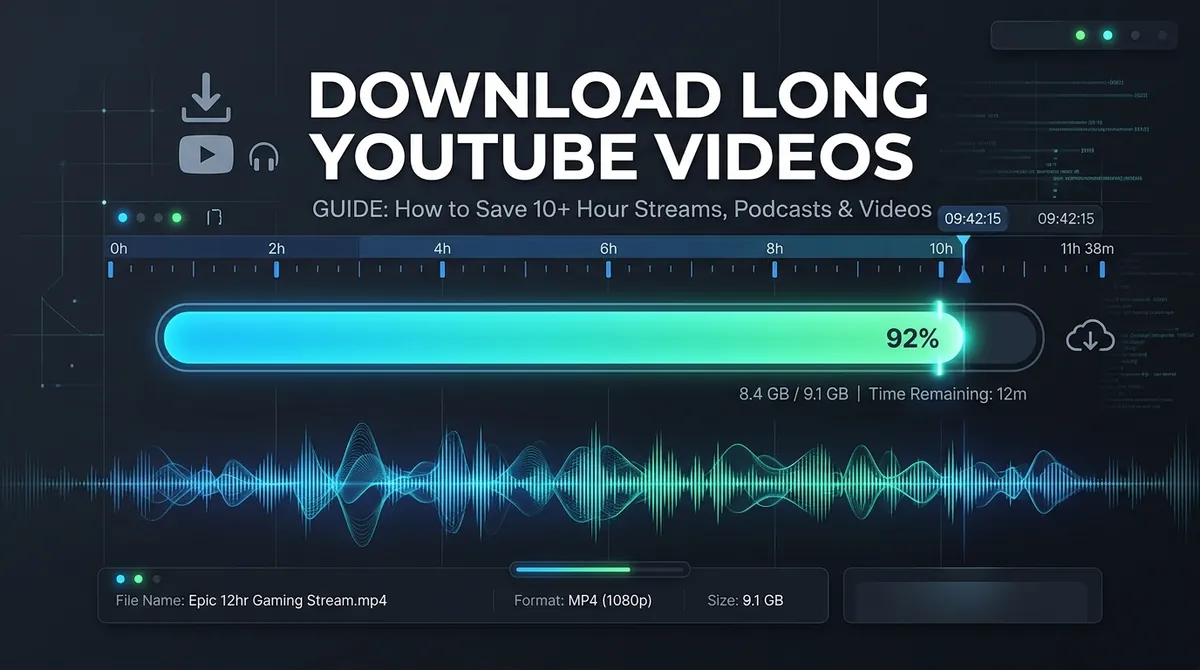
Long videos are a different situation. A three-hour podcast, a six-hour documentary, a ten-hour ambient music stream, a full university lecture series split into hour-long segments. These files are large, the download takes longer, and more things can go wrong along the way. Browser timeouts. Server-side limits. Partial downloads that play for forty minutes and then stop abruptly. Empty files that look complete until you check the duration.
This guide explains what actually causes these failures, and how to download long YouTube videos reliably without any of that.
Why long YouTube videos fail more often than short ones
Most online video downloaders work by opening a connection to YouTube's servers, streaming the video data through their own server, and then forwarding it to your browser. For a two-minute clip, this chain stays open for maybe five or ten seconds. For a three-hour podcast, that same chain needs to stay open continuously for potentially thirty minutes or longer, depending on your internet speed.
Several things can break that chain before the download completes.
The first is PHP or server-side execution time limits. Many hosting configurations impose a maximum script execution time of 30 to 60 seconds. When a download takes longer, the server terminates the script mid-transfer. Your browser receives part of the file and marks the download as complete, but the file is truncated. The video plays until the point where the download was cut off and then stops.
The second is YouTube CDN connection stability. YouTube delivers video from geographically distributed servers. For standard short clips, a temporary network hiccup between the downloader server and the YouTube CDN is recovered transparently. For long files, the same hiccup during a sustained transfer can cause the connection to reset, leaving you with an incomplete file.
The third is browser download timeouts. Some browsers impose their own limits on how long a file download can take, particularly over slower connections. A 2 GB, four-hour video downloading at 3 MB per second takes roughly eleven minutes. Most browsers handle this fine. On some mobile browsers with aggressive power management, the download may be interrupted if the screen locks or the browser moves to the background.
The fourth is resolution and format complexity. On YouTube, almost every quality above 360p uses the DASH format, where video and audio are stored as separate streams. Downloading a four-hour video in 1080p requires fetching both streams simultaneously and merging them before delivery. This is significantly more resource-intensive than a simple file transfer, and any instability during that merge process affects the entire file.
What to know about file sizes before you download
Before downloading a very long video, it helps to have a rough sense of what file size to expect. This affects how long the download will take and whether your device has enough storage.
At 720p, YouTube encodes video at roughly 2.5 to 3 Mbps for the video stream, plus about 1 Mbps for audio. That works out to around 1.2 GB per hour of video. A three-hour podcast at 720p is approximately 3.5 GB. A ten-hour ambient music stream at 720p runs to around 12 GB.
At 1080p, the video bitrate increases to roughly 4 to 5 Mbps. A three-hour video in 1080p is around 6 GB. At 4K, the same video can reach 20 GB or more.
For casual offline listening or watching, 720p is almost always sufficient for long-form content. Podcasts and audio-heavy content are often better downloaded as audio-only M4A files, which run at roughly 60 MB per hour. A three-hour podcast as an M4A file is about 180 MB, compared to 3.5 GB for the same content as a 720p video.
How to download a long YouTube video using Y2Mate Official
Y2Mate Official at y2mate-official.com is built to handle long-duration videos without the script timeout problems described above. The server-side execution limit for download sessions is configured to allow extended transfers, and the YouTube CDN connections are set up with automatic reconnection so that temporary network interruptions do not abort the download.
Here is the straightforward way to download a long video:
- Copy the YouTube URL from your browser address bar. For long videos, the standard watch URL works fine. For a playlist of lectures or podcast episodes, copy the URL of the specific video you want rather than the playlist URL, unless you want to download individual episodes.
- Open y2mate-official.com and paste the link into the search box. The tool fetches the available formats from YouTube. For very long videos this takes the same few seconds as any other link.
- Choose your format. For a video-heavy documentary or lecture where the visuals matter, select 720p or 1080p MP4. For a podcast or audio-heavy content, switch to the Audio tab and select M4A. The file will be significantly smaller and will sound identical to the video version.
- Click Download and let your browser handle the file transfer. Keep the browser tab open until the download completes. On desktop browsers this is straightforward. On mobile, make sure your screen does not lock during the download, particularly for very large files.
Downloading podcasts and audio-only content
A large portion of long YouTube content is audio-focused: full podcast episodes, interview series, lecture recordings, documentary audio, ambient music streams, and audiobooks read over a static image or simple slideshow.
For all of these, downloading as audio-only rather than as a full video file makes more practical sense. The M4A option on Y2Mate Official copies the original AAC audio stream from YouTube directly, without re-encoding. This means:
- The file is roughly 50 to 60 times smaller than the equivalent video file at 720p.
- The audio quality is identical to what you hear when streaming the video normally on YouTube.
- The file plays natively on iPhones, Android phones, Windows, macOS, and all major media players without any conversion needed.
- The download takes a fraction of the time compared to a full video download.
For a two-hour podcast episode, the M4A download typically takes less than two minutes even on an average connection. The equivalent 720p video download for the same content would take ten to fifteen minutes and produce a file you would almost certainly never watch on a screen.
To download audio only, paste the YouTube URL as usual, wait for the format list to load, and then click the Audio tab before selecting your download. Choose M4A for best quality. The MP3 option is available for compatibility with older devices, but M4A sounds better because it does not require a re-encoding step.
Downloading lecture series and multi-part videos
University courses, conference recordings, and tutorial series are often published as individual videos within a YouTube playlist. Each video may be one to three hours long. If you want to download a full course for offline study, the process is the same as downloading a single video, just repeated for each episode.
A few practical tips for multi-part downloads:
Download one video at a time rather than trying to run multiple downloads simultaneously in separate browser tabs. Running several large downloads in parallel puts pressure on both your internet connection and the downloader server, and can slow each individual download or cause instability.
Name your files consistently as you go. Most browsers save downloaded files with the video title as the filename. For lecture series, YouTube video titles typically include episode numbers or lecture numbers in the title, which keeps them organized automatically in your downloads folder.
For audio-only lectures, consider whether the M4A files need to be converted for a specific device or player. If you plan to listen on a standard smartphone or computer, M4A works natively. If you need a format compatible with an older MP3 player or car stereo, the MP3 option is available on the Audio tab.
Downloading live stream recordings
YouTube live streams that have ended are saved as regular videos on the channel. They appear as standard watch URLs and download the same way as any other YouTube video. The file size and duration reflect the full length of the original stream.
Live stream recordings often run for several hours, and many are uploaded in 1080p or higher quality. If you are downloading a full gaming stream, a concert recording, or a sports broadcast replay, the file size can be substantial. A ten-hour stream in 1080p may be 18 GB or more.
For streams that long, consider whether 720p serves your purpose instead. The difference between 720p and 1080p on a laptop screen or a phone screen is minimal for content where you are mostly listening or following action rather than studying fine visual detail. The 720p version of the same ten-hour stream would be around 11 GB, saving several gigabytes of storage and significantly reducing download time.
Alternatively, for background streams like lo-fi music, white noise, or ambient soundscapes, the audio-only M4A download reduces the ten-hour file to roughly 600 MB. This is a practical choice for content you will listen to rather than watch.
Tips to prevent download failures on long videos
Even with a reliable downloader, very large files benefit from a few precautions on the device side.
Use a wired connection when possible. Wi-Fi is generally stable enough for most downloads, but very long transfers on congested wireless networks occasionally experience brief interruptions. A wired Ethernet connection eliminates this variable.
On laptop computers, make sure power saving settings do not suspend the system during the download. Windows has a default behavior of reducing network activity when running on battery. Plugging in during a long download removes this restriction.
On mobile, disable screen auto-lock or keep the browser active for the duration of the download. Android and iOS both have mechanisms that reduce network activity for background browser tabs after the screen locks. For downloads that take more than a few minutes, keeping the screen on prevents unexpected interruptions.
Check available storage before starting. A ten-hour stream at 720p needs roughly 11 GB of free space. Most modern phones have this available, but it is worth checking before starting a large download rather than finding partway through that storage is full.
What to do if a download stops midway
If a long download appears to finish but the file is shorter than expected or stops playing partway through, the download was truncated. This happens occasionally with very large files and is almost always caused by one of the timeout or connection issues described earlier in this article.
The fix is to start the download again. Y2Mate Official generates a fresh download session each time, so re-pasting the YouTube URL and selecting the same format starts a new transfer from the beginning.
If truncation happens consistently with a specific very long video (ten hours or longer), try downloading it at a lower resolution. A 720p download is simpler to deliver than a 1080p one because it does not require the video and audio stream merge step. For extremely long content, 720p also keeps the file size manageable.
Alternatively, switch to audio-only. If the content is primarily spoken word or music, the M4A download is the most reliable option for long durations because the file is small, the process is straightforward, and there is no video-audio merge involved.
How to transfer long downloaded videos to other devices
After downloading a long video to your computer, you may want to transfer it to a phone, tablet, or smart TV for offline playback.
For iPhones and iPads, video files can be transferred from a computer using the Files app over USB via Finder on Mac or iTunes on Windows. Once in the Files app, VLC for iOS can play any MP4 or M4A file directly without any conversion. The built-in Photos app does not support MP4 files imported this way, but VLC and Infuse handle them without issues.
For Android phones, connecting the phone via USB and copying the file to the device's internal storage or SD card works directly. Android's default media player and apps like VLC play MP4 files without any setup.
For smart TVs, a USB drive is the most practical method for very large files. Copy the downloaded video to a USB drive formatted as FAT32 or exFAT, plug it into the TV's USB port, and open the video from the TV's media player. Most modern smart TVs support MP4 files with H.264 video and AAC audio, which is what YouTube-sourced files contain.
Downloading YouTube playlists vs. individual long videos
Some long-form content on YouTube is structured as a single long video: a full album listen, a complete audiobook, a continuous documentary. Other content uses playlists, with each episode as a separate video: a podcast series, a university course, a TV show.
For single-video content, paste the watch URL and download as described above. For playlist-organized content, download each episode individually by navigating to each video and copying its specific URL. This keeps each episode as a separate file, which makes playback easier to manage than a single continuous file hours long.
If you want to combine multiple audio files from a podcast series into a single continuous M4A or MP3 file for easier playback, that requires a separate audio editing or joining tool after downloading. Y2Mate Official delivers each video as its own file; combining them is a local step done on your device after the downloads are complete.
Frequently asked questions
Why does my downloaded YouTube video stop playing partway through?
A video that stops at a specific point was most likely truncated during download. This happens when the downloader server has a script execution time limit that cuts off the transfer before completion. The fix is to download again using a tool with no execution time limit, or to choose a lower resolution or audio-only format, which reduces file size and download duration.
What is the best format for downloading long podcasts from YouTube?
M4A audio-only is the best choice for podcasts. It copies the original AAC audio stream from YouTube without re-encoding, giving you identical audio quality to streaming. The file is roughly 60 MB per hour, compared to 1.2 GB per hour for a 720p video of the same content. It plays natively on all modern phones, computers, and media players.
How large is a 3-hour YouTube video download?
At 720p, a three-hour video is approximately 3 to 3.5 GB. At 1080p, the same video is around 5 to 6 GB. As audio-only M4A, a three-hour video is roughly 180 MB. The exact size varies based on the video's original bitrate and content type.
Can I download a 10-hour YouTube live stream recording?
Yes. Once a live stream ends, YouTube saves it as a regular video that can be downloaded like any other. A ten-hour stream is a large file, typically 10 to 18 GB depending on resolution. For content like ambient music or podcasts where you plan to listen rather than watch, the audio-only M4A download reduces the file to around 600 MB.
How do I download long YouTube videos on my phone without the download stopping?
Keep your screen on and the browser tab active during the download. Both Android and iOS can interrupt browser downloads when the screen locks or the browser moves to the background. For very large files, keep the browser open and visible until the download finishes. Using Wi-Fi rather than mobile data is also recommended for large transfers.
Can I download an entire YouTube course or lecture series?
Yes, by downloading each lecture individually. Navigate to each video in the series, copy its URL, and download it separately. Most lecture series are organized as playlists, so each video has its own URL. Downloading one at a time is more reliable than attempting multiple large downloads simultaneously.