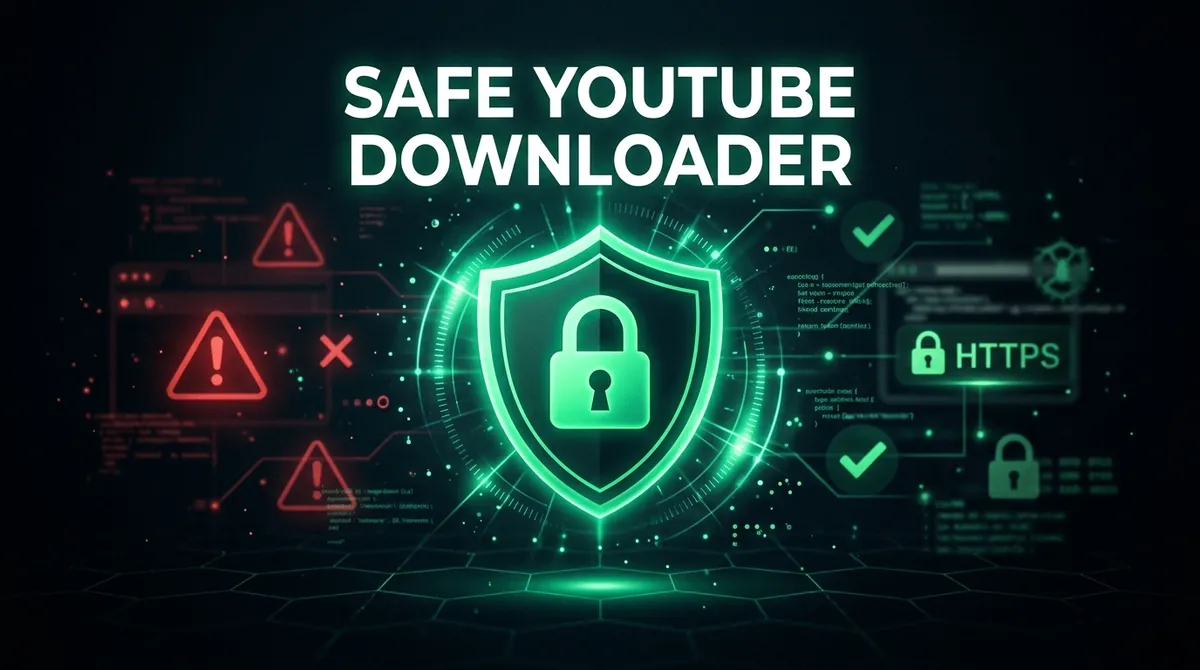
Searching for a YouTube video downloader brings up dozens of results. Some of them work fine. Others exist primarily to show you ads, redirect you to sketchy pages, or get you to install software you did not ask for. The challenge is telling them apart before something goes wrong.
This guide explains the actual security risks that come with using online video downloaders, how to spot unsafe sites before you interact with them, and what specific behaviors to look for on the tools that are genuinely safe.
The real risks of unsafe downloader websites
Most legitimate security concerns around YouTube downloaders fall into four categories. Understanding each one helps you make better choices faster.
The first category is fake download buttons. Many downloader sites are not actually in the business of helping you download videos. They run ad networks that pay them per click. The visual layout of the page is designed to make ad buttons look like the real download button. You click what you think will start your download, and instead you land on an advertising page, a software offer, or something worse. The real download button is often smaller and positioned away from the most prominent elements on the page.
The second category is software bundling. Some sites require you to install a browser extension or desktop application to use their service. These downloads are often bundled with additional software that installs automatically unless you read each screen carefully during setup. Common bundles include browser toolbars that change your default search engine, "optimization" tools that run at startup, and adware that displays additional ads in your browser. Legitimate web-based downloaders do not require you to install anything.
The third category is browser notification spam. When you visit certain sites, your browser may display a pop-up asking whether you want to allow notifications from that site. The prompt looks identical to the native browser dialog used by legitimate services like Gmail or news sites. If you click Allow, the site gains permission to send you notifications at any time, even when you are not on that site. These notifications are typically ads. Revoking this permission requires you to go into your browser settings and manually remove it. Safe downloader sites do not request notification permissions.
The fourth category is drive-by scripts. A small number of sites run malicious JavaScript that attempts to exploit browser vulnerabilities, mine cryptocurrency using your device's CPU, or redirect you to phishing pages. This is less common than the other three risks but more serious. Keeping your browser up to date and running a browser with built-in protection reduces this risk substantially.
Five red flags that signal an unsafe downloader site
You can screen most sites in about thirty seconds by looking for these signals before you interact with anything on the page.
The first red flag is no HTTPS. Check the browser address bar before you do anything. If the site loads over plain HTTP rather than HTTPS, the connection between your browser and the site is unencrypted. On a secure Wi-Fi connection this is a nuisance. On public Wi-Fi in a cafe or airport, it is a genuine risk because someone else on the same network can potentially intercept the traffic. Every legitimate site uses HTTPS in 2026. There is no valid reason for a video downloader to operate without it.
The second red flag is multiple prominent buttons before you paste a URL. If you land on a page and immediately see three or four large, colorful buttons offering you things like "Download Now," "Install Free," or "Speed Up Your PC" before you have even entered a video link, those buttons are not part of the download service. They are ads. The real functionality of the site, if it exists at all, is somewhere further down the page.
The third red flag is immediate notification permission requests. If a browser dialog appears asking whether the site can send you notifications within the first few seconds of your visit, and you did not subscribe to any service on that site, close the dialog by clicking Block or X. Then consider whether you want to continue using that site at all.
The fourth red flag is the download button triggering a redirect rather than a file save. On safe sites, clicking a download button either opens your browser's standard save dialog or adds a file to your downloads folder automatically. If clicking the button takes you to a different page instead of saving a file, the button was not a real download trigger.
The fifth red flag is requests to disable your ad blocker as a condition of using the site. Some sites genuinely need ads to cover server costs, and that is understandable. A request to disable your ad blocker is not itself dangerous. But sites that refuse to function at all without you disabling ad blocking often rely on ad networks that carry higher-risk ads, including scripts that may go beyond standard advertising. If a site requires ad blocker deactivation before you can use it, that is worth factoring into your trust decision.
How browser-based downloaders are safer than desktop software
When you use a web-based video downloader, the processing happens on a remote server. The server fetches the video from YouTube, processes it if needed (for example, merging video and audio streams for 1080p), and delivers the file to your browser over a standard HTTPS connection. Your device runs no additional code beyond what your browser already runs on any website.
This is fundamentally different from installing a desktop application. Desktop software runs with whatever permissions you grant it during installation. Many video downloader applications request broad filesystem access, which they need to save files, but some also install background services, modify system settings, or add themselves to startup programs. Some collect usage data or display their own ads inside the application interface.
A web-based tool that runs entirely in your browser cannot do any of these things. It cannot access your filesystem except through the standard browser download mechanism, cannot install services, and cannot run when your browser is closed. The attack surface is limited to what any website can do, which your browser already sandboxes.
This does not mean every web-based tool is safe. The risks described earlier in this article apply specifically to web-based tools. But the category of risks is narrower and generally more reversible than risks from installed software.
What data does a safe video downloader collect?
Different tools have different data practices. Here is what to look for in a privacy policy or terms of service before using a service regularly.
The video URL you paste is sent to the server to process your request. This is unavoidable. The question is how long the server stores that URL and whether it is associated with any identifying information about you.
Safe tools process the URL, retrieve the available formats, generate a download link, and discard the information shortly after. They do not store a history of what you downloaded or associate requests with your IP address in a persistent database.
IP addresses are used by most services to enforce rate limiting, meaning they prevent any single user from making too many requests in a short window. This is a legitimate technical measure. The IP is typically stored temporarily in server logs and overwritten after a short period. This is normal and expected.
What safe tools do not do: build a profile of your downloads over time, sell data about your activity to third parties, or require you to log in with a Google or social media account. Requiring login would give the service direct access to an identity linked to your real name and email, which is unnecessary for a download tool.
Y2Mate Official does not require registration. Requests are processed and the data is not retained in association with any user profile. The Privacy Policy and Terms of Service are accessible from the site footer if you want to review the specifics before use.
Using a safe YouTube downloader: what the experience should look like
If you have only used ad-heavy downloader sites you found through a search, you may not realize how different a clean experience is. Here is what using a trustworthy tool actually looks like step by step.
You arrive on the site. The page loads without a notification permission request and without fake buttons that were not there to help you download a video. The primary element on the page is the search or URL input box.
You paste a YouTube link. The tool fetches the available formats, which takes a few seconds. While it is working, nothing asks you to install software or allow notifications.
You see the available video resolutions and audio options. The options are clearly labeled with resolution, format, and file size where available. No option in the list requires you to install anything or click through an intermediate page.
You click Download. Your browser's standard download behavior activates. On Chrome and Firefox, a file appears in your downloads panel at the bottom of the screen or in your system downloads folder. On Safari for iPhone, the file saves to the Downloads folder in the Files app. Nothing asked for permissions, and nothing tried to install software. The download is the download.
That is what a legitimate tool looks like. Any step in that sequence that deviates — a button that leads somewhere other than your file, a request to install something, or a permission prompt — is worth paying attention to.
Protecting yourself when using any downloader
Even when using a site you trust, a few habits reduce your risk profile across the board.
Keep your browser updated. Browser updates regularly patch security vulnerabilities that malicious scripts could otherwise exploit. Most browsers update automatically in the background, but it is worth checking periodically that you are on the current version, particularly if you use the browser on a shared or older computer.
Use a browser with built-in protection. Chrome's Safe Browsing, Firefox's Enhanced Tracking Protection, and Safari's Intelligent Tracking Prevention all provide baseline protection against known malicious sites and cross-site tracking scripts. These are enabled by default but can be turned off. Make sure they are on.
Scan downloaded files if you are uncertain. If you download a file from an unfamiliar site and the extension is not what you expected (.mp4 for video, .m4a for audio, .mp3 for audio), scan it with your system antivirus before opening it. A video file should not have a .exe, .msi, .apk, or .dmg extension. If it does, do not open it.
Check the download source in your browser. Most browsers show you the URL from which each file was downloaded in your downloads history. If a file was downloaded from a domain you do not recognize, that is worth investigating before opening it.
Revoke notification permissions you did not intend to grant. In Chrome: Settings, Privacy and security, Site settings, Notifications. In Firefox: Settings, Privacy & Security, Permissions, Notifications. In Safari: Preferences, Websites, Notifications. All three browsers let you see which sites have notification access and remove it selectively.
Legal considerations when downloading YouTube content
The legality of downloading YouTube videos varies by country and depends on what you do with the downloaded content. YouTube's Terms of Service prohibit downloading content unless a download button is explicitly provided by YouTube itself (which it offers for certain content to YouTube Premium subscribers). This is a terms-of-service restriction between you and YouTube, not a criminal law in most jurisdictions.
Downloading videos that are not your own for personal offline viewing sits in a legally grey area in many countries. Distributing downloaded videos, using them commercially, or bypassing encryption measures raises more serious concerns under laws like the Digital Millennium Copyright Act in the United States.
Public domain videos, Creative Commons licensed content, and videos where the uploader has explicitly permitted downloading are generally safe to archive. For copyrighted commercial content like music videos and movies, the legal situation is less straightforward and varies by where you are located.
This article does not constitute legal advice. If you have specific concerns about the legality of downloading particular content in your jurisdiction, consult a legal professional.
How to use Y2Mate Official safely
Y2Mate Official is a web-based safe YouTube video downloader that processes requests server-side and delivers files through standard browser download behavior. There is no installation required, no registration, and no notification permission requests.
To download a video:
- Copy the YouTube video URL from your browser or the YouTube app Share menu.
- Visit y2mate-official.com and paste the URL into the search box.
- Select your preferred format from the results. Video options include up to 4K where the source supports it. Audio options include M4A and MP3.
- Click Download. The file saves to your device through your browser's standard download mechanism.
At no point does the site ask for notification access, ask you to install software, or replace your download with a different page. The site may show an advertisement in a new tab, which keeps the service free; your download continues either way. If a page asks you to install something or allow notifications while you use the site, clear your browser cache, check for browser extensions that may be injecting ads into pages, and try again in a fresh incognito window.
Frequently asked questions
Are online YouTube downloaders safe to use?
It depends on the site. Web-based downloaders are generally safer than installing desktop software, because they cannot access your filesystem or run background processes. The main risks are fake download buttons that lead to ads, browser notification spam, and software bundles on sites that require you to install an extension. Sites that use HTTPS, require no installation, and trigger standard browser file downloads without redirects are the safest to use.
How do I know if a download button is real or an ad?
Real download buttons on legitimate sites trigger your browser's native file download behavior, either a save dialog or a file appearing in your downloads folder. If clicking a button takes you to a different page instead of saving the file, or asks you to install something, it was not a real download button. On safe sites, the button you click for a specific format (like "720p MP4") should directly initiate the file download without any intermediate step.
Is it safe to install a YouTube downloader browser extension?
Browser extensions carry higher risk than web-based tools because they run continuously in your browser and can access pages you visit beyond the downloader site. Some YouTube downloader extensions have good reputations. Others collect browsing data or inject ads into pages. Before installing any extension, check the developer name, read the permissions it requests, and look at user reviews. If an extension requests access to all websites you visit, consider whether that level of access is necessary.
What should I do if a video downloader site requested browser notifications and I clicked Allow?
Revoke the permission through your browser settings. In Chrome: Settings, Privacy and security, Site settings, Notifications. In Firefox: Settings, Privacy & Security, Permissions, Notifications. In Safari: Preferences, Websites, Notifications. Find the site in the list and change its permission to Block or remove it entirely. The site will no longer be able to send you notifications.
Does Y2Mate Official store a history of what I download?
No. Y2Mate Official does not keep a download history, and there are no accounts, so there is no profile that collects what you download. Like most websites, our servers keep technical logs (including your IP address and, for downloads, the video link) for up to 14 days to stop abuse and fix errors; they are then deleted automatically. Our Privacy Policy explains the details.
Is it legal to download YouTube videos for personal use?
The legality depends on your country and the specific content. YouTube's Terms of Service prohibit downloading without an explicit download feature provided by YouTube, which constitutes a contractual restriction rather than a criminal law in most jurisdictions. Downloading Creative Commons or public domain content is generally unambiguous. Downloading copyrighted content for personal offline viewing occupies a legal grey area in many countries. Distributing or using downloaded content commercially is a more serious issue. This answer is not legal advice; consult a legal professional for guidance specific to your situation.