You download a video in 1080p or 4K, open it, and the picture is sharp but there is no sound at all. It is one of the most common complaints about YouTube downloaders, and it has nothing to do with your phone, your speakers or your media player. It comes from the way YouTube stores high-quality video, and from downloaders that ignore it.
Why Higher Quality Videos Sometimes Lose Audio
YouTube does not keep one finished file per resolution. To let the player switch quality smoothly while you watch, it stores the picture and the sound as separate streams: one video-only stream for each resolution (144p, 240p, 360p, 480p, 720p, 1080p, 1440p, 2160p) and a few audio-only streams. The player in your browser fetches one of each and plays them together.
Today, usually only the low 360p version is also available as a single ready-made file with picture and sound. Everything above it, including 720p on most videos, exists only as separate picture and sound. A downloader that simply grabs "the 1080p file" gets the video-only stream, which is why the result plays in silence.
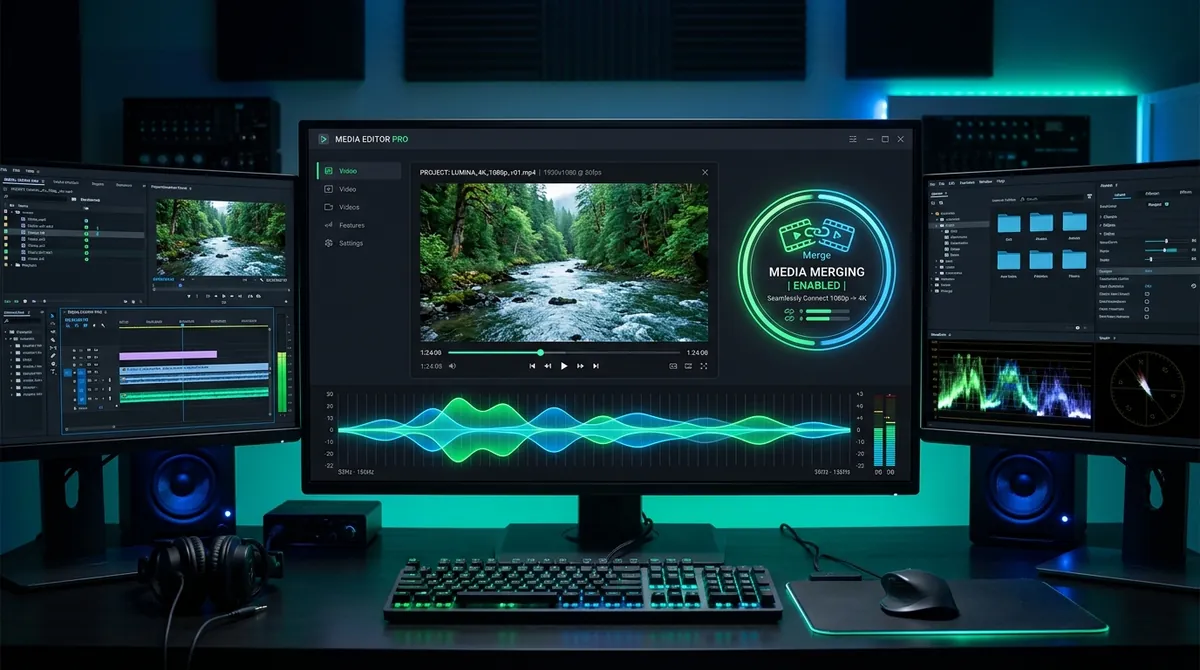
To give you a normal video with sound, the downloader has to fetch both streams and join them into one file, a step called merging or muxing. If that step is missing, the audio is lost.
How to Tell Whether a File Is Missing Its Sound Track
A silent file is not always obvious, especially if the video starts quietly. Three quick checks:
- Open it in VLC and choose Tools › Codec Information (on a Mac: Window › Media Information). A complete file lists two streams, one video and one audio. A file with only one stream has no sound track.
- Look at the file size. A merged file is slightly larger than the video-only stream, because it also carries the sound (around 1 MB per minute).
- Play the same moment on YouTube. Some videos really are silent, or have music removed for copyright reasons. If YouTube is silent too, the download is fine.
How Y2Mate Official Delivers Full HD and 4K Videos With Sound
When you choose 720p, 1080p, 1440p or 4K on Y2Mate Official, our server fetches the video stream you picked together with a matching audio stream, and FFmpeg joins them into one file while it is being sent to you. You do not wait for a separate conversion: the download starts after a short preparation step and the merging happens on the way.
The picture is copied exactly as YouTube stores it. It is never re-encoded, so a 1080p download looks the same as 1080p on YouTube, with no extra compression. The audio is copied unchanged too when it already fits the file type; otherwise it is converted once to high-quality AAC (for MP4) or Opus (for WebM). You do not need to install anything: the work is done on our server, and your browser simply saves the finished file.
MP4 or WebM: Which File Will You Get?
Each quality in the list shows its file type, for example 1080p (.mp4) or 2160p (.webm). YouTube encodes its videos in several formats, and the highest resolutions are usually only available in the newer VP9 or AV1 formats, which often come as WebM files. Here is what that means in practice:
| Where you play the file | MP4 | WebM |
|---|---|---|
| Android phones and tablets | Yes | Yes |
| Windows 10 and 11 (Media Player, Films & TV) | Yes | Usually, on current versions |
| Mac (QuickTime Player) | Yes | No: use VLC or IINA |
| iPhone and iPad (Photos app) | Yes | No: use VLC |
| Chrome, Firefox, Edge | Yes | Yes |
| VLC on any device | Yes | Yes |
| Video editors and smart TVs | Almost always | Depends on the model |
For the widest compatibility, choose an MP4 option. If you want the very best picture at 1440p or 4K and the only option is WebM, take it and play it with VLC, which is free on every platform.
Step-by-Step Guide: Downloading 1080p and 4K Videos With Sound
- Copy the link of the YouTube video: tap Share › Copy link in the app, or copy the address from your browser.
- Open Y2Mate Official and paste the link into the search box. The video page opens with the title, the thumbnail and the list of available qualities and file sizes.
- On the Video tab, tap Download next to the quality you want, for example 1080p.
- A small window opens while the file is prepared, usually within a few seconds. When it says the file is ready, tap the green Download button.
- Your browser saves the file to its usual download folder. On a phone, you can then open it from the Files app or your gallery.
For a 4K video, choose 2160p, and make sure you have enough free space: 4K files are several times larger than 1080p.
How Big Will the File Be?
The list shows the expected size next to each option. As a rough guide for ten minutes of video:
- 720p: about 100–200 MB
- 1080p: about 200–350 MB
- 1440p: about 400–700 MB
- 2160p (4K): about 0.8–1.5 GB
Fast-moving content such as sports or games is at the top of each range, while slides and talking-head videos are at the bottom. If you only need the sound, the audio options are much smaller: about 1 MB per minute.
Still No Sound? Five Things to Check
- Try another player. Some older players cannot decode Opus audio inside WebM files. VLC plays everything.
- Choose MP4 instead of WebM. If a video editor or TV shows the picture but no sound, the MP4 version almost always works.
- Check that the download finished. If the file is much smaller than the size shown in the list, the download was interrupted. Download it again on a stable connection.
- Check the original. Play the video on YouTube. If parts are silent there too, the file is correct.
- Check where the file came from. A silent file downloaded elsewhere earlier will stay silent: download it again with Y2Mate Official.
Frequently Asked Questions
Why does my downloaded 1080p video have no sound?
YouTube stores 1080p and 4K picture and sound as separate tracks. Basic downloaders only take the picture track. Y2Mate Official always combines both tracks, so your download has full sound.
Do I need to install any software to get 1080p videos with audio?
No. The video and audio are merged on our server while the file downloads, so all you need is a browser, on a phone or a computer.
Does merging the audio reduce the picture quality?
No. The picture is copied exactly as YouTube stores it and is never re-encoded, so the quality is the same as watching that resolution on YouTube.
What is the maximum resolution available with audio?
Up to 4K Ultra HD (2160p) when the video was uploaded in 4K. Every quality in the list comes with sound.
Why is 4K sometimes offered only as WebM?
YouTube encodes the highest resolutions mostly in VP9 or AV1, and these usually come as WebM files. WebM plays in VLC, Chrome and on Android. If you need MP4 for an editor or an iPhone, choose the highest resolution that is listed as .mp4.